 AudioBind
IT PROBABLY ISN'T GONE, JUST HIDDEN — OR IT WAS NEVER THERE
Stereo Mix was a recording-device option that let you capture "whatever's currently playing on this PC" as if it were a microphone — the classic trick for recording system audio without extra software. If you've gone looking for it on a newer Windows 11 machine and come up empty, there are two different things that could be going on, and they need different fixes.
⚡ Short version: it's driver-dependent, not a Windows 11 feature removal. Check Sound Control Panel → Recording tab → right-click → Show Disabled Devices. If it's there, enable it. If it's genuinely not there, your driver never exposed it, and re-enabling isn't an option — you need a different tool for the same job.
HOW TO CHECK IF IT'S JUST HIDDEN
OPEN THE CLASSIC SOUND CONTROL PANEL
Right-click the speaker icon in your taskbar, choose Sound settings, then scroll down and open "More sound settings" to get to the classic control panel — the modern Settings app doesn't show disabled recording devices.
SHOW DISABLED DEVICES
On the Recording tab, right-click anywhere in the empty list area and check both "Show Disabled Devices" and "Show Disconnected Devices."
ENABLE IT IF IT APPEARS
If Stereo Mix shows up now, right-click it and choose Enable. If nothing shows up at all, your audio driver doesn't expose it — this is common on modern laptops and a lot of Realtek configurations, and it's not something a Windows setting can bring back.
IF IT'S GENUINELY NOT THERE: DEPENDS WHAT YOU'RE TRYING TO DO
This is the part that actually matters, because "Stereo Mix alternative" covers two different problems that get lumped together constantly.
If you're trying to record or stream your system audio — capture what's playing into OBS, a recorder, or a virtual mic — Stereo Mix was never the only way to do that, and honestly wasn't the best one even when it worked. OBS's built-in "Desktop Audio" source captures system audio directly via Windows' own loopback APIs and doesn't need Stereo Mix at all. For more flexible virtual routing and mixing, VB-Audio Cable and Voicemeeter do the same job Stereo Mix was doing, more reliably. AudioBind doesn't help here — it doesn't record audio or make it available to other programs.
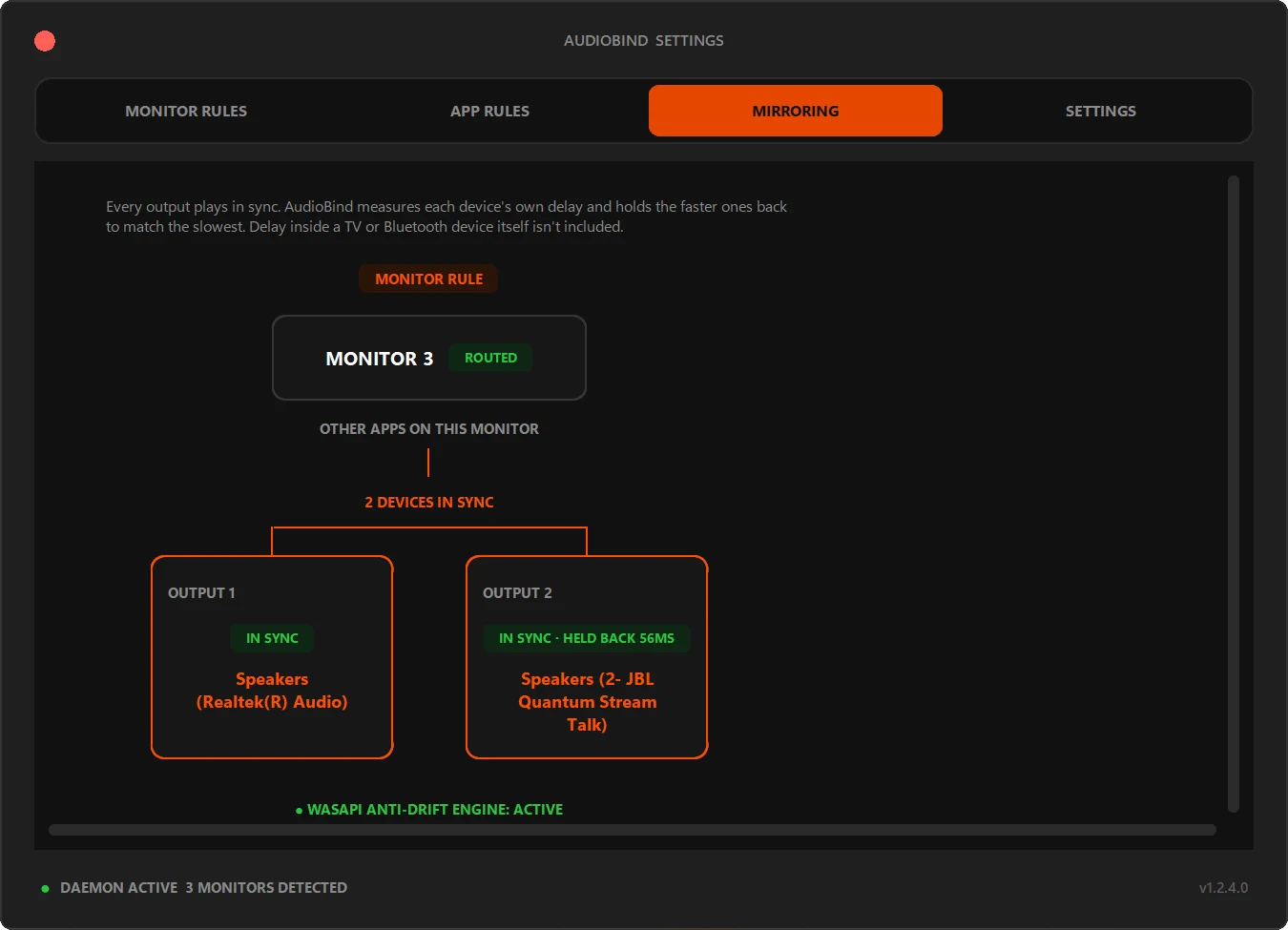
If what you actually wanted was simpler — hearing audio on a second device rather than capturing it into another program (the old Stereo Mix "Listen to this device" trick) — that's not a recording problem at all, it's a routing problem. Moving one app to a different output is something Windows' own Volume mixer can already do for free; playing one app on two devices at the same time is the part Windows can't, and that's the one AudioBind solves, no recording device or virtual cable involved. Worth checking which of these you actually needed before installing anything.
QUICK QUESTIONS
Why don't I have Stereo Mix on Windows 11?
Most likely your audio driver or OEM disabled or removed it. It's not a Windows 11 feature that got deleted system-wide — it was always driver-dependent, and many modern Realtek and laptop audio drivers ship without it exposed at all.
How do I check if Stereo Mix is just hidden, not missing?
Right-click the speaker icon in your taskbar, open Sound settings, go to the Recording tab (in the classic Sound Control Panel), right-click in the empty device list area, and check "Show Disabled Devices." If Stereo Mix appears, right-click it and enable it.
Does AudioBind replace Stereo Mix?
Not for recording — AudioBind doesn't record audio or make it available to other programs. If what you actually wanted from Stereo Mix was to hear an app's audio on two devices at once rather than record it, that's a different, narrower problem, and it's the one AudioBind solves.
NEEDED THE ROUTING PART, NOT THE RECORDING PART?
Send an app to a real output device — or two at once.
DOWNLOAD ON MICROSOFT STORE