 AudioBind
If you're a PC gamer with two monitors, you've probably already figured out the basics: one screen for the game, one screen for everything else. What you might not have figured out yet is your audio — because dual monitor audio is genuinely not solved by Windows out of the box.
You have preferences. Your headset is for immersive gaming. Your desk speakers are for Discord so you can hear your friends without it bleeding into your mic. Maybe you've got a TV on a third port for movies. All of these should work simultaneously, automatically, without you touching a single setting after the initial setup.
Here's how to build that. For real, this time.
THE PROBLEM WITH "JUST USE WINDOWS SOUND SETTINGS"
Windows 10 and 11 do have a per-app audio output option buried in Settings → System → Sound → Volume mixer (App volume and device preferences on Windows 10). But it has two critical limitations that make it useless for gaming setups:
1. It's static. You set Discord to Speakers, and it stays on Speakers regardless of what you're doing. That sounds fine until you move Discord to your other monitor and expect the audio to change. It won't.
2. It doesn't understand monitors. Windows has zero concept of routing audio based on which screen an app is on. The closest you can get natively is a per-app preference — but that's a manual setting, not an intelligent rule.
For a truly automatic setup, you need something that watches where your apps are and reacts in real time. That's what AudioBind does.
THE THREE MOST COMMON DUAL MONITOR GAMING SETUPS
Monitor 1 (Primary): Game running fullscreen → Headset for immersive audio
Monitor 2 (Secondary): Discord, browser, anything else → Desk speakers so voice chat doesn't go through the headset
AudioBind rule: Monitor 1 → Headset · Monitor 2 → Speakers. When you alt-tab Discord to your secondary, audio follows instantly. When you drag Chrome over, same thing.
Monitor 1: Game → Headset for monitoring live audio
Monitor 2: OBS, Streamlabs, chat → Speakers for stream audio preview
AudioBind rule: Monitor 1 → Headset · Monitor 2 → Speakers. Optional: Lock OBS/Streamlabs to Speakers using an App Rule so it never accidentally ends up on the headset.
Monitor 1: Productivity apps, browser, email → Speakers for ambient sound and video calls
Monitor 2: Background content (YouTube, Spotify, Netflix) → Headphones for focused audio
AudioBind rule: Monitor 1 → Speakers · Monitor 2 → Headphones. Drag content between screens and the sound follows without any manual switching.
HOW TO SET IT UP WITH AUDIOBIND
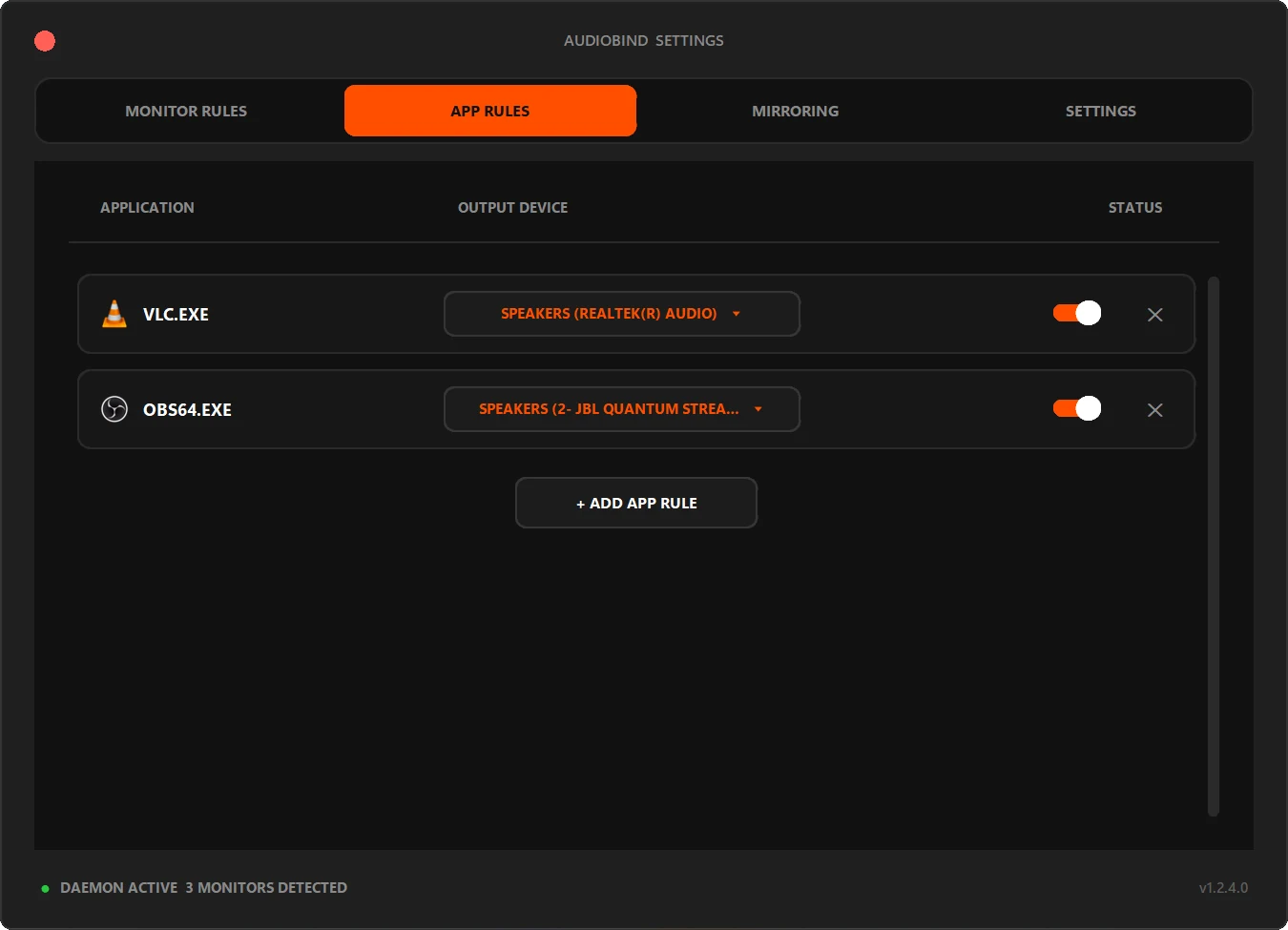
This takes under five minutes. Download AudioBind from the Microsoft Store, launch it, and open the settings panel from the system tray icon.
In the Monitor Rules tab, assign your preferred audio output device to each connected monitor. In the App Rules tab, add any apps that should always use a specific device regardless of their monitor position (Discord is the classic one to pin here).
Your rules save as you set them. That's it. AudioBind runs silently in the background — about 30MB of RAM — and handles every audio switch from this point forward. You never touch it again unless your setup changes.
Pro tip: Pin Discord to your Headset in App Rules AND set Monitor 2 → Speakers. That way, Discord always goes through your headset no matter what, but every other app on Monitor 2 still gets the speakers treatment.
WHAT ABOUT SIMULTANEOUS PLAYBACK?
AudioBind supports simultaneous audio streams — your game plays through the headset while Discord plays through speakers at the same time. This is by design. The goal is to let you hear everything you need to hear, from the right source, without compromise.
Windows supports this natively at the hardware level. AudioBind just handles the routing logic intelligently so you don't have to manage it manually.
IS THERE A SUBSCRIPTION?
No. AudioBind is a one-time purchase on the Microsoft Store. There are no monthly fees, no hidden tiers, and no feature-gating. You buy it once, and it's yours forever.
BUILD YOUR SETUP IN 5 MINUTES.
Download AudioBind, set your monitor rules, and never think about audio routing again.
DOWNLOAD ON MICROSOFT STORE