 AudioBind
If you've got multiple monitors and multiple audio devices, you've run into this problem: Windows has no native way to automatically route audio based on which monitor an app is on. You can manually set a per-app output device in Sound Settings, but that setting doesn't care which screen the app is on — it won't switch outputs when you drag a window to a new screen.
This guide explains exactly how to fix that, permanently, using AudioBind — a Windows app that watches your windows and switches audio instantly based on the monitor rules you define.
⚡ Short version: Download AudioBind from the Microsoft Store → Set Monitor A → Speakers, Monitor B → Headset → Done. Your audio now follows your windows automatically.
WHY WINDOWS DOESN'T DO THIS BY DEFAULT
Windows manages audio at the application level, not at the monitor level. When you go to System → Sound → Volume mixer (App volume and device preferences on Windows 10), you can assign an output device per app — but this is a static setting. Windows doesn't know or care which monitor an app is on, and it won't automatically reassign audio when you drag a window from one screen to another.
It's a genuine design gap in Windows. If you've ever right-clicked the sound icon to manually change an output device mid-session, you've already experienced it. AudioBind exists specifically to fill that gap.
WHAT AUDIOBIND DOES
AudioBind runs as a lightweight background service (~30MB RAM). It follows the window you're using: every time you switch to a window, or finish dragging one to another screen, AudioBind checks which monitor it's on and instantly switches that app's audio to the device you've assigned to that monitor.
It also supports App-Specific Locks — if you want Discord to always go through your headset regardless of which monitor it's on, you can set that independently of your monitor rules. Both systems work together without conflict.
HOW TO SET IT UP (STEP BY STEP)
DOWNLOAD AUDIOBIND
Open the Microsoft Store and search for "AudioBind", or click the download button at the top of this page. Install it — no AudioBind account needed.
LAUNCH AND FIND THE TRAY ICON
Open AudioBind after installing it and it lives in your system tray (bottom-right of your taskbar, near the clock). Click the icon, or right-click it and choose AudioBind, to open Settings. It starts with Windows from then on; if you'd rather it didn't, switch it off in Windows Settings → Apps → Startup (AudioBind's Settings → STARTUP → OPEN takes you there).
OPEN MONITOR RULES AND ASSIGN DEVICES
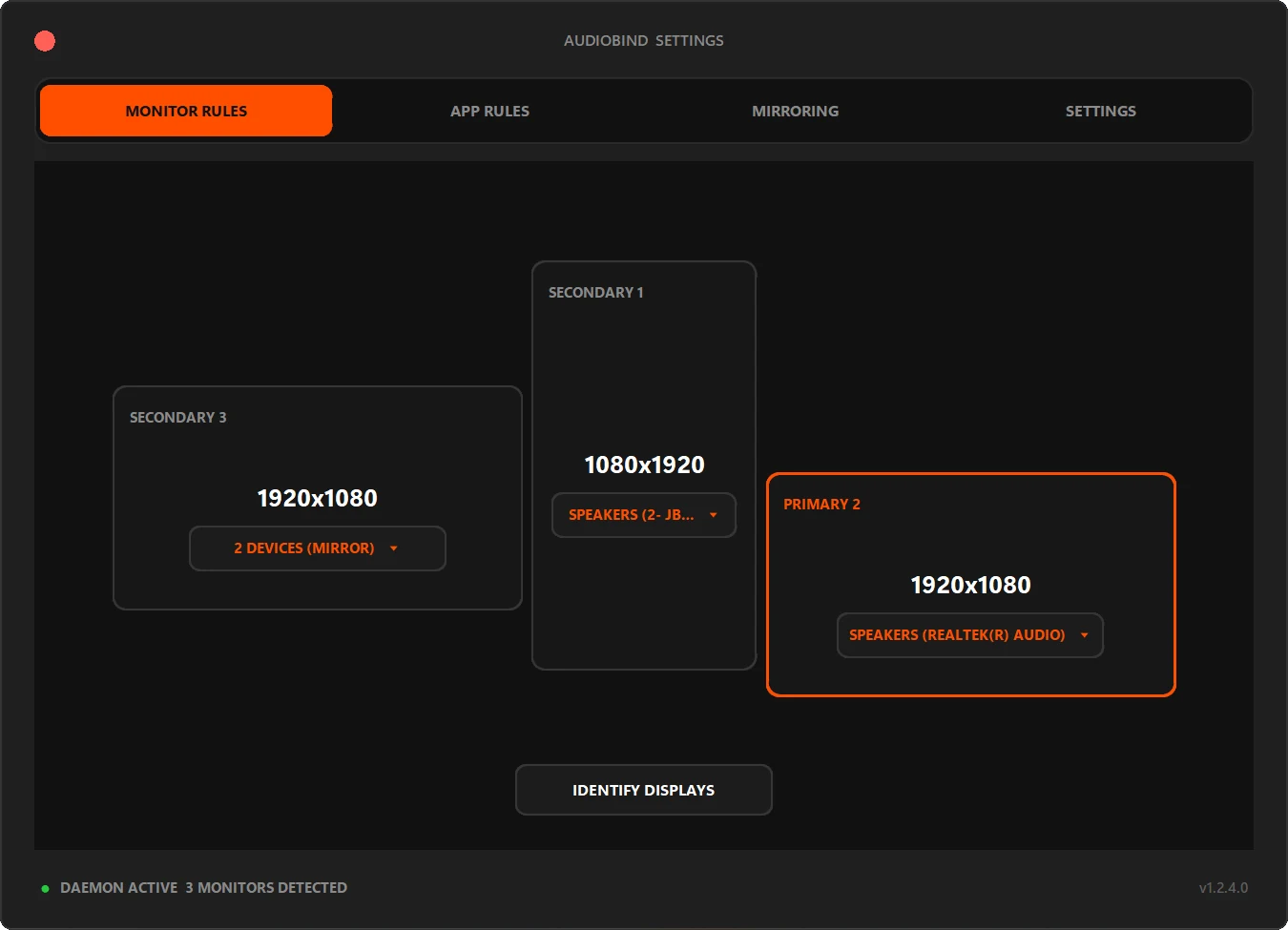
In the Monitor Rules tab you'll see a map of your actual screens (hit IDENTIFY DISPLAYS if you're not sure which is which — it flashes a number on each one). Click the button on a monitor, tick the output device it should use, and click CONFIRM SELECTION. Example: Monitor 1 (Left) → Headset, Monitor 2 (Right) → Desktop Speakers, Monitor 3 (TV) → HDMI Audio.
OPTIONAL: ADD APP-SPECIFIC LOCKS
Switch to the App Rules tab. If you want Discord, Spotify, or any specific app to always play through a particular device (ignoring its monitor position), add it here.
TEST IT
There's no save button — rules apply as you set them. Drag an app that's playing audio from one monitor to another and its audio follows as soon as you let go, or move it with Win+Shift+Arrow. You're done.
COMMON MULTI-MONITOR AUDIO SETUPS
Gaming + Discord setup: Game running on Monitor 1 → Headset. Discord on Monitor 2 → Desk Speakers (so you hear your friends without mic bleed). This is AudioBind's bread and butter.
Work + entertainment setup: Productivity apps on main monitor → Speakers. Video or music on secondary screen → Headphones. Great for home office setups where you switch between focused work and background entertainment.
Streaming / content creation: Game capture monitor → Headset for live audio monitoring. OBS/Streamlabs on secondary → Speakers for stream audio preview. AudioBind handles the routing so you can focus on your content.
DOES IT WORK ON WINDOWS 10 AND WINDOWS 11?
Yes. AudioBind is fully compatible with both Windows 10 and Windows 11. It works with all standard audio output devices — USB headsets, Bluetooth speakers, HDMI audio, optical audio, and standard 3.5mm jack outputs — as long as Windows recognises them as output devices.
STOP SWITCHING MANUALLY.
Set your monitor rules once. AudioBind handles the rest, automatically, every time you move a window.
DOWNLOAD ON MICROSOFT STORE