 AudioBind
You want Discord through your headset. Chrome through your speakers. Spotify through whatever you feel like today. And you want Windows to remember this automatically — without you going back into Sound Settings every single time you open an app.
The good news: Windows can already pin an app to a device. The catch: it only ever does exactly what you set by hand, it has no idea which monitor anything is on, and it has a long-running reputation for occasionally dropping the setting. This guide explains where it runs out, and shows you how AudioBind's App Rules pick up from there.
WHAT WINDOWS CAN (AND CAN'T) DO NATIVELY
Windows 10 and 11 have a built-in per-app audio setting — Settings → System → Sound → Volume mixer on Windows 11, or App volume and device preferences on Windows 10. Here's what that actually gives you:
| Feature | Windows Native | AudioBind App Rules |
|---|---|---|
| Set a different output per app | ✓ Yes | ✓ Yes |
| Puts your choice back if it gets dropped | ✗ No | ✓ As you use the app |
| One app on several devices at once | ✗ No | ✓ Yes (mirroring) |
| Works alongside monitor-based rules | ✗ Not supported | ✓ Yes |
The Windows setting is a genuinely good starting point, and for one app on one device it may be all you need. Where it runs out: it can't put one app on two devices, it knows nothing about your monitors, and if it ever drops your choice, it stays dropped until you notice. AudioBind's App Rules sit on top of that same Windows setting, but keep re-applying your rules as you use each app, including after a restart or a device change, and work alongside your monitor rules.
HOW AUDIOBIND APP RULES WORK
AudioBind watches which window you're using. When an app with a rule comes to the front, or you finish dragging its window, AudioBind routes that app to the device you picked, and Windows keeps it there. Each time AudioBind starts, it re-applies every rule as you use each app. Store apps that Windows runs inside its own frame, like Media Player, work too, and an app that hasn't made a sound yet gets its device as soon as it starts playing.
App Rules work independently of — and in combination with — Monitor Rules. If you've set Monitor 2 → Speakers, but you've also set a rule that Discord always uses the Headset, Discord will use the Headset no matter which monitor it's on. The App Rule takes priority.
HOW TO SET IT UP
DOWNLOAD AND INSTALL AUDIOBIND
Get it from the Microsoft Store. Open it and it lives in your system tray, routing in the background. From then on it starts with Windows too (you can switch that off in Windows Settings → Apps → Startup).
OPEN THE SETTINGS PANEL
Click the AudioBind icon in your system tray (bottom-right, near the clock), or right-click it and choose AudioBind. Go to the App Rules tab.
ADD A RULE
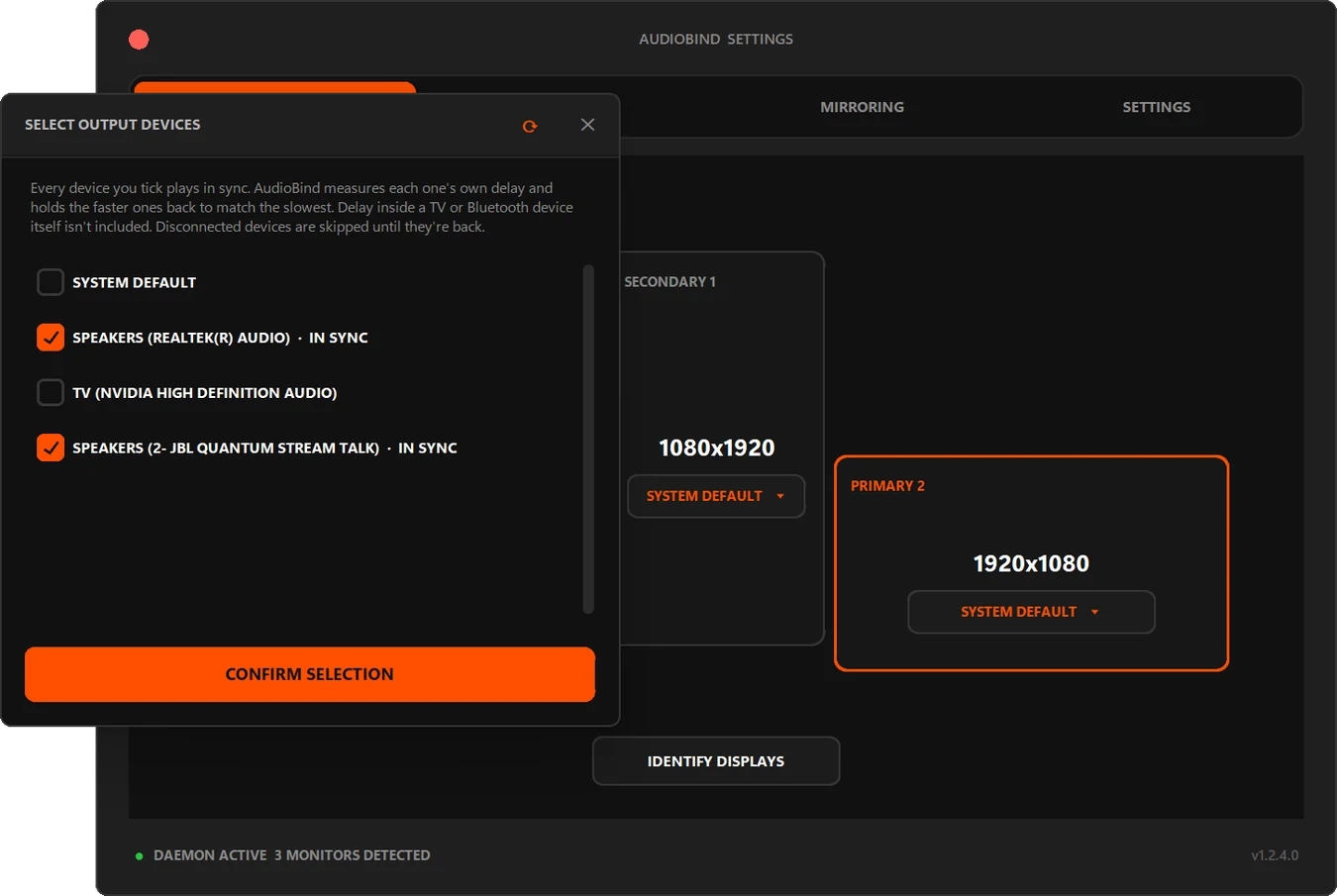
Click + ADD APP RULE and pick the app from the list of installed apps (there's a search box), or use BROWSE .EXE for anything that isn't listed. Then click the new rule's output button, tick the device it should use, and click CONFIRM SELECTION.
TEST IT
There's no save button — the rule is saved as soon as you confirm, and kicks in the moment you switch to that app. Play something in it, drag its window to any monitor, and the audio stays on the device you picked.
COMMON APP RULES TO START WITH
Discord → Headset: Discord is the classic case. You want voice chat in your ears, not blasting from your desk. Pin it to your headset so it never accidentally ends up on speakers.
Your games → Headset: Rules are per app, so a rule on Steam, Epic or Battle.net covers the launcher's own sounds, not the games it starts. Give each game you care about its own rule — it's the game's .exe you want, not the launcher's.
Spotify → Speakers: Background music should come from your environment, not your ears. Pin Spotify to your desk speakers so it never interrupts your gaming audio on the headset.
Video calls → Headset: Pin your call app to your headset so other people's voices won't come out of your speakers and loop back into your mic. AudioBind handles the output side; pick the headset's mic inside the call app itself.
⚡ Quick tip: You can combine App Rules with Monitor Rules. Set general monitor routing first, then use App Rules to override specific apps that should always go to a particular device regardless of screen position.
SET IT ONCE.
NEVER TOUCH IT AGAIN.
AudioBind App Rules lock your apps to the right audio devices, permanently and automatically.
DOWNLOAD ON MICROSOFT STORE