 AudioBind
THE FRUSTRATION: TINNY MONITOR SPEAKERS TAKING OVER
You have a great pair of desktop speakers, a dedicated USB DAC, or a gaming headset plugged into your PC. Everything sounds rich and immersive. Then, you wake your PC from sleep, launch a fullscreen game, or turn on your second display, and suddenly all your audio starts blasting through your monitor's hollow, tinny built-in speakers.
You open the Windows volume slider, switch it back to your speakers, and carry on—only for the exact same problem to happen again tomorrow. If this sounds familiar, you are running into one of Windows' most persistent hardware handshake behaviors.
⚡ Short version: Windows treats HDMI/DisplayPort connections waking up as brand-new audio hardware and automatically promotes them to the default output. You can disable the monitor device in Windows Sound settings, or use AudioBind's persistent App Rules to lock audio to your actual speakers permanently.
WHY IT HAPPENS: THE HDMI & DISPLAYPORT HANDSHAKE
Modern graphics cards (NVIDIA GeForce, AMD Radeon, and Intel Arc) transmit audio directly through HDMI and DisplayPort cables alongside display pixels. Inside your graphics driver sits an audio controller (such as NVIDIA High Definition Audio).
Here is what happens behind the scenes:
- Hot Plug Detection (HPD): When your monitor goes to sleep or is turned off, the digital display link disconnects. Windows marks the monitor's audio endpoint as unplugged.
- The Power-On Handshake: When you wake your PC or turn the monitor back on, the graphics card and display perform an EDID handshake. Windows detects an "audio device connection" event.
- Default Output Hijacking: Windows audio service interprets this new connection as a newly available playback device and often automatically reassigns system default audio to the monitor.
- Driver Updates: Every time your graphics driver updates, it re-installs HDMI audio components, resetting Windows device preferences back to default.
METHOD 1: DISABLE THE MONITOR IN SOUND SETTINGS
If you never use your monitor's internal speakers or its passthrough 3.5mm headphone jack, the most direct native Windows fix is to disable the device entirely:
OPEN CLASSIC SOUND CONTROL PANEL
Press Win + R, type mmsys.cpl, and press Enter to open the Windows Sound control panel.
LOCATE YOUR MONITOR UNDER PLAYBACK
Look for your monitor's model name or an entry labeled NVIDIA High Definition Audio / AMD Audio Device.
DISABLE THE DEVICE
Right-click the monitor endpoint and select Disable. Click Apply, then OK.
The drawback of this method: It is a blunt instrument. If you ever *do* want to use the monitor's headphone jack (for a gaming console, streaming box, or secondary headset), you have to reopen control panels to re-enable it. Additionally, major GPU driver updates frequently re-enable disabled devices automatically.
METHOD 2: PERMANENT RULE LOCKING WITH AUDIOBIND
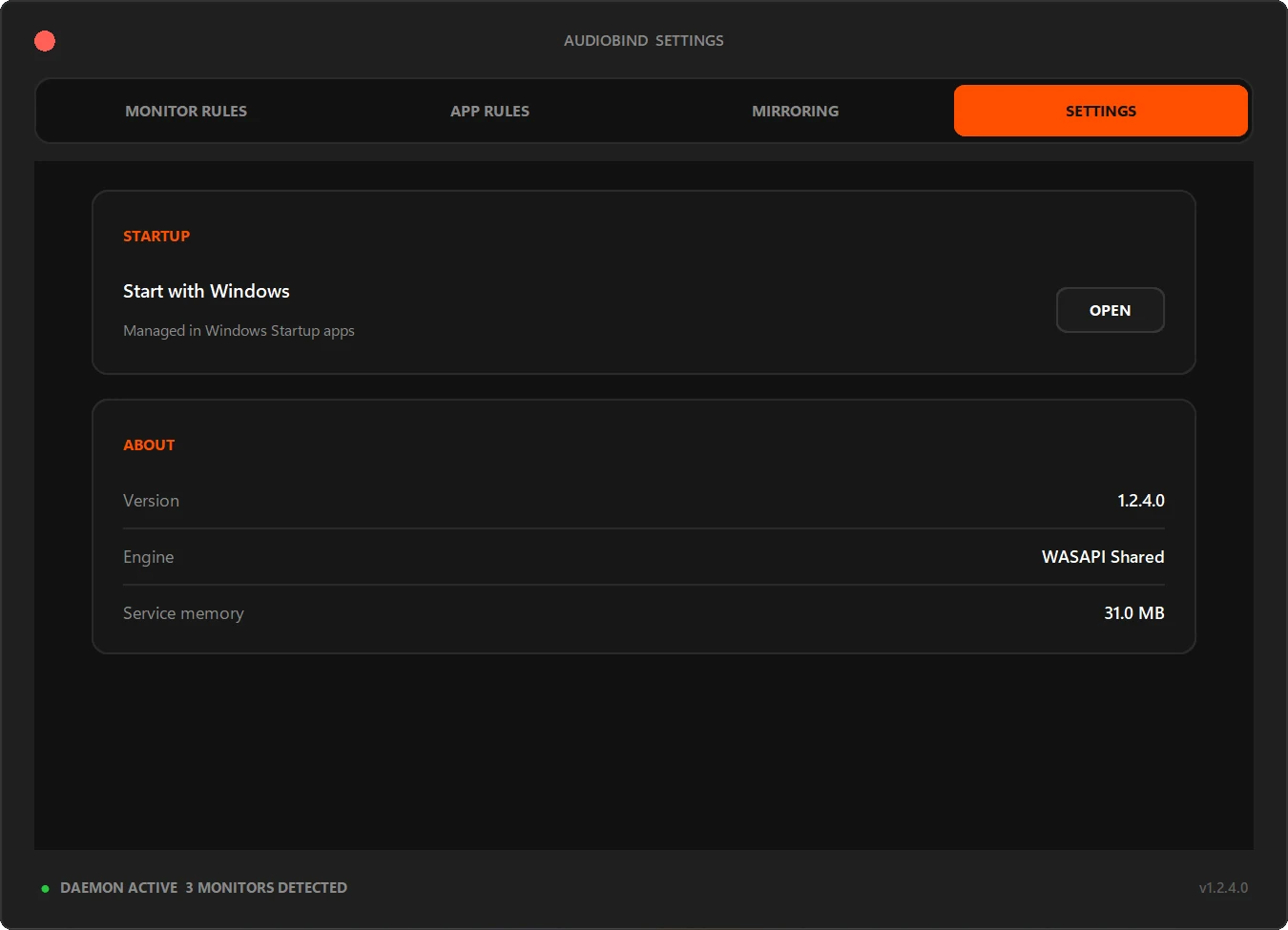
If you want a solution that doesn't break when GPU drivers update, or if you actually want to use different devices contextually, the cleanest approach is using AudioBind.
AudioBind operates as a lightweight (~30MB) startup service that actively enforces your preferred routing:
- Persistent App Rules: Hard-lock your critical programs (games, Spotify, web browsers, Discord) directly to your USB DAC or desktop speakers. Even if your monitor reconnects and Windows tries to promote it to the default, AudioBind ensures your apps remain locked to your real speakers.
- Intelligent Monitor Rules: If you *do* want monitor audio sometimes, you can set a rule to route an app to your monitor only when its window is physically moved to that display. As soon as you move it back to your primary monitor, audio smoothly switches back to your speakers.
- Hardware Resilience: When devices disconnect or sleep, AudioBind marks them as SKIPPED and seamlessly resumes your preferred routes when hardware is ready.
HOW TO HARD-LOCK YOUR APPS IN AUDIOBIND
- Open AudioBind from your system tray and navigate to the App Rules tab.
- Click + ADD APP RULE and pick the app or game you want to protect.
- Click the output button, select your real speakers or headset, and confirm.
That's it. From that moment forward, HDMI handshakes, display power sleep cycles, and graphics updates will never steal your sound again.
QUICK QUESTIONS
Why does Windows automatically change my audio output to my monitor?
When an HDMI or DisplayPort monitor powers on or wakes from sleep, your graphics card renegotiates an audio handshake (HPD). Windows interprets this as a newly attached audio device and automatically switches default playback to it.
Will disabling the monitor device in Windows Sound settings fix it permanently?
Yes, but GPU driver updates (from NVIDIA or AMD) often reinstall audio drivers and re-enable disabled monitor endpoints. Furthermore, disabling the monitor prevents you from using its headphone jack or speakers when you actually want to.
How does AudioBind stop monitor audio hijacking?
AudioBind uses Persistent App Rules to lock your games, browsers, and media players directly to your speakers or DAC. Even when Windows detects an HDMI monitor reconnection, AudioBind keeps your apps routed to your desired output.
Can I route sound to my monitor only when a window is on that screen?
Yes. AudioBind lets you create Monitor Rules that route an application to your monitor's built-in speakers only while its window sits on that display, switching back to your desk speakers when moved away.
STOP FIGHTING YOUR AUDIO SETTINGS.
Get AudioBind on the Microsoft Store for a one-time purchase of $4.99 USD.
DOWNLOAD ON MICROSOFT STORE